
Search by Image
Edit on GitHubSearch by Image lets you identify products quickly by uploading a photo. It removes the need to search through long catalogs or to remember specific product names. A single image lets the system recognize the content and guide you to the right product.
Search by Image supports teams that work with shelf layouts, packaging, spare parts, equipment, or product sets that are easier to photograph than describe. It is part of the wider Search by Image capabilities that allow ordering and discovery workflows to begin with a photo.
Why Search by Image is useful
Product names and SKUs can be difficult to recall in B2B environments where assortments are large or highly technical. Field staff, store teams, and buyers often rely on visual cues in their daily work. Search by Image uses these cues to let you take a photo and move directly to the right item.
This approach improves product discovery, reduces errors, and speeds up workflows where time and accuracy are critical.
How buyers use it
- Click the camera icon next to the storefront search bar.
- Upload a photo or take a new one.
- The system analyzes the image and identifies the content.
- You are redirected to the most relevant product or to a list of results.
Ideal use cases
Search by Image is effective in environments where you interact with physical products or require quick identification. Common scenarios include the following:
- Identifying a worn or defective part on machinery when working on site
- Identifying items when labels, barcodes, or packaging are missing or unreadable
- Supporting buyers who work with large assortments and rely on visual cues
- Enabling mobile-first identification when buyers cannot describe the item by name
Benefits for your business
- Improves product discovery in large catalogs
- Reduces mistakes caused by manual search or inconsistent naming
- Supports mobile buying and field sales workflows
- Helps teams identify items with similar or technical names
- Enhances buyer satisfaction by reducing effort
Supported file formats
Search by Image accepts JPEG, PNG, WebP, and GIF file formats.
How buyers use Search by Image on the storefront
-
Open any page that contains the search bar, then tap the camera icon next to the search field.

-
In the dialog that appears, select Upload image. You can choose a photo from your device or take a new one with your mobile camera.
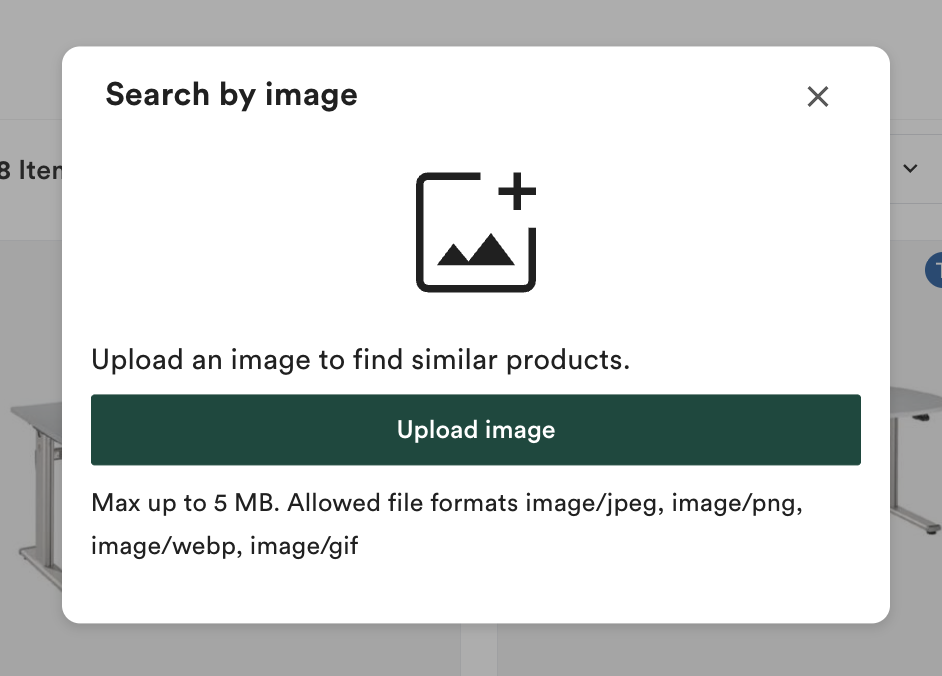
-
Search by Image analyzes the image to identify the product. Once the analysis is complete, you are redirected either to the most relevant product page or to a list of suitable results.

Enable Search by Image
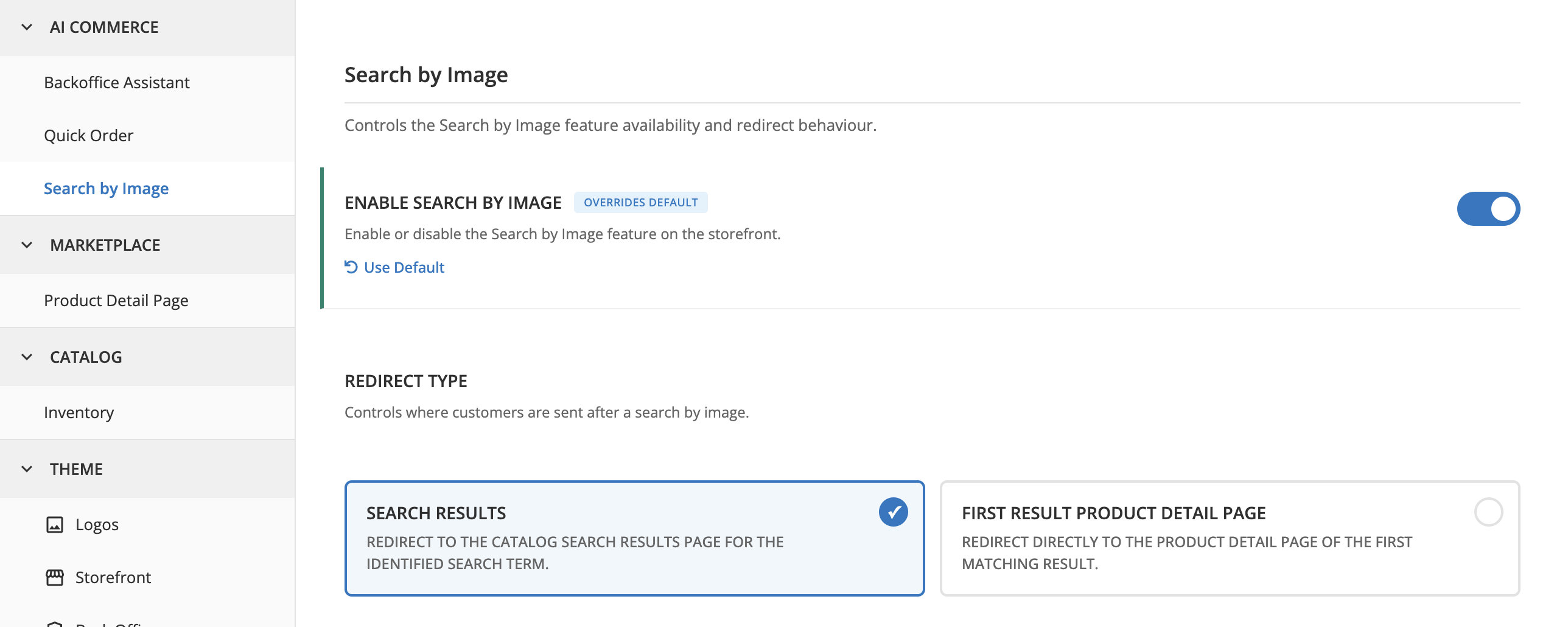
To enable the feature, go to AI Commerce > Search by Image > Search by Image in the Back Office, then turn on Enable Search by Image.
Configure the redirect behavior
After you enable Search by Image, you can control where buyers land after a successful image search. In the same settings group, set Redirect type to one of the following:
| OPTION | DESCRIPTION |
|---|---|
| Search results | Redirects the buyer to the catalog search results page for the identified search term. This is the default. |
| First result product detail page | Redirects the user directly to the product detail page (PDP) of the first matching product. |
Developer resources
| RESOURCE | DESCRIPTION |
|---|---|
| Search by Image | Technical overview: architecture, configuration options, and AiFoundation integration. |
| Install Search by Image | Step-by-step installation guide. |
Thank you!
For submitting the form